How to Add Text to Your AI-Generated Book Cover
March 27, 2026
AI can generate stunning artwork. A moody thriller silhouette. An epic fantasy landscape. A warm illustrated romance. But text is where most AI covers fall apart.
Ask an AI image model to add your title directly to a cover and you'll likely get warped letters, misspelled words, inconsistent letter spacing, or text that blends illegibly into the background. The technology has improved, but "add my title in the top third" still isn't a reliable instruction to give an image model. It's not what they're optimized for.
The solution is simple: separate the art from the text, then combine them with control. Generate the artwork. Add typography yourself, as layers, on top. This way you get the best of both worlds — AI's strength in producing rich, genre-appropriate imagery, and human control over the most communication-critical element on your cover.
Here's how to do it well.
Choosing Fonts by Genre
Font choice is the fastest way to either confirm or undermine your genre signal. Before you open your cover editor, check what fonts the bestsellers in your sub-genre are using. The answer will narrow your options considerably.
A useful rule of thumb: if your font would surprise a regular reader of your genre, reconsider it.
Literary and historical fiction — Old-style serifs. Garamond, Playfair Display, EB Garamond, Cormorant. These carry weight and restraint. They feel like books that ask something of the reader. Avoid anything geometric or playful.
Thriller and crime — Bold condensed sans-serifs. Oswald, Bebas Neue, Anton. Sometimes distressed or textured for extra tension. The typography often dominates the cover, sized larger than you'd expect, with tight tracking. Clean and cold.
Romance — Script and handwritten fonts. Lato, Pacifico, or purpose-built display scripts. The letterforms feel pen-written, intimate, and emotional. Contemporary romance sometimes uses a cleaner, more modern sans-serif — but avoid anything technical or cold.
Fantasy — Ornate display serifs. Cinzel, UnifrakturMaguntia, MedievalSharp, or decorated serif faces with strong personality. Borders and decorative flourishes around the title area are genre convention. The type should feel like it belongs in another world.
Science fiction — Geometric sans-serifs. Exo, Rajdhani, Space Grotesk, Orbitron. Clean, precise, engineered-feeling. Loose letter-spacing reads as technological. Avoid anything that feels handmade or organic.
The genre font conventions are closely tied to the broader visual trends covered in the full genre design breakdown for 2026. If you're uncertain what your sub-genre expects, that's the place to start before touching a font.
One firm rule across all genres: maximum two fonts on a cover. One for the title, one for the author name. More than two and the cover stops looking designed and starts looking assembled. As covered in the typography section of the cover mistakes guide, this is one of the fastest ways to signal an amateur production, even on otherwise strong artwork.
Sizing for Readability
Your cover will be judged primarily at thumbnail size — roughly 300 pixels wide in Amazon search results, recommendations carousels, and "Customers Also Bought" rows. Design for that context first, not for how it looks at full resolution on your monitor.
Title text must be legible at thumbnail scale. That means large enough to read, with enough contrast that the letters don't blur into the background. Bold fonts hold up at small sizes; thin decorative letterforms disappear. When you make a change to your title treatment, immediately zoom out or resize the preview before you decide you're happy with it.
Author name is secondary — smaller than the title, but still readable without effort. There's a common instinct to make it too small ("I'm not famous yet") and equally common advice to ignore that instinct. Readers who click through to your book page are going to see it. Give it room.
Taglines and series information — only if they fit without crowding the rest of the cover. If adding a series name makes the cover feel cramped, leave it out. Clutter is the bigger risk than omission.
Placement Basics
Where you put your text is as important as what it says.
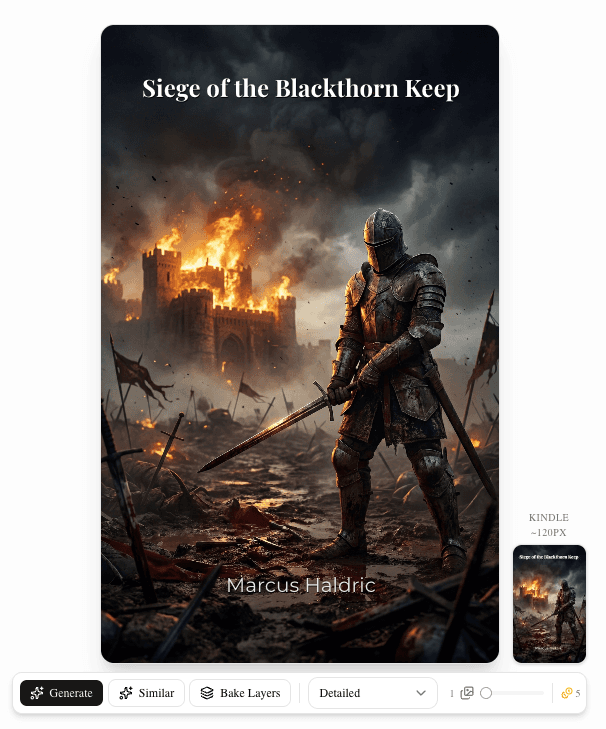
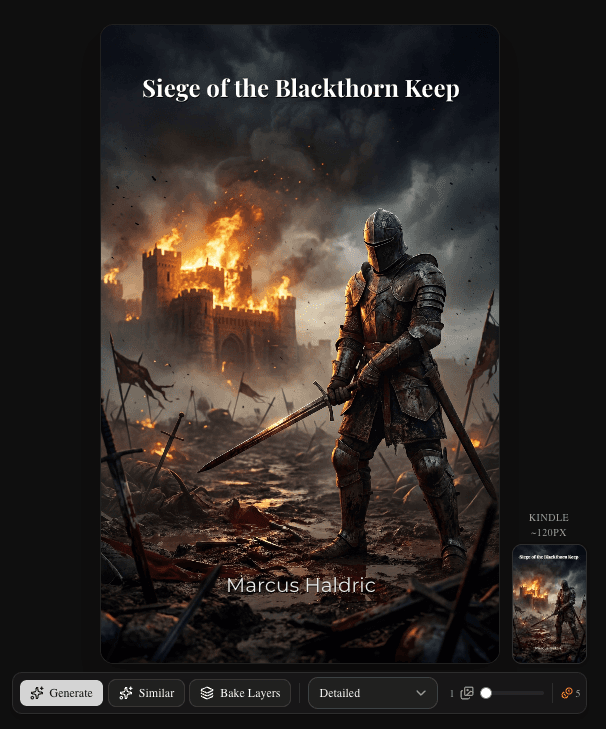
The standard approach — and it's standard because it works — is title at the top, author name at the bottom. The two most important text elements occupy opposite ends of the cover, creating a natural hierarchy without competing. This is the layout readers expect, and deviation from it takes more craft to execute than most people expect.
Avoid the middle of the cover for text. The center is where the most visually important part of the image usually lives — the character's face, the main object, the focal point. Placing text there creates a fight between type and image that neither wins cleanly.
Use the rule of thirds. Place text in the upper third or lower third, and align it (loosely) with the vertical thirds as well. This is borrowed from photography and applies directly to cover design. Text that observes natural visual anchoring points feels intentional; text that floats in the middle feels lost.
Breathing room from edges. Text pushed to the extreme edges of the cover feels cramped and risks getting clipped in certain display contexts. Leave a margin — roughly 5-8% of the width on each side is a workable guide.
Handling text on busy backgrounds is one of the most common practical problems. If the image underneath your title is complex and variable in tone, the text will fight for legibility in some areas even if it reads fine in others. Two reliable solutions: a subtle drop shadow behind the letters, or a semi-transparent color bar behind the title area. Both preserve the artwork while ensuring the text is always legible, regardless of what's happening underneath.
The Layer Approach
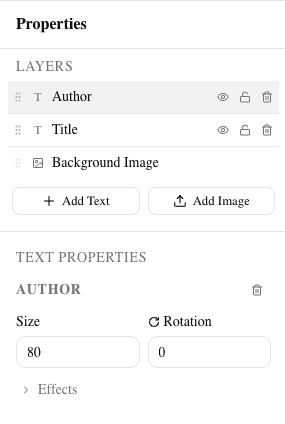
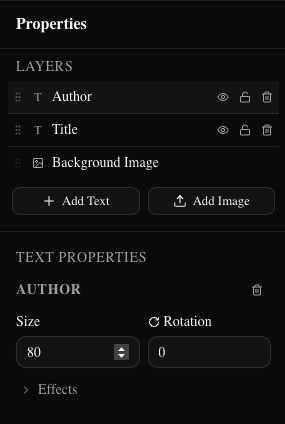
Text added as layers sits on top of your artwork, independent of it. Each text element — title, author name, series info — lives on its own layer, individually movable, resizable, and stylable without touching anything else on the canvas.
This has a practical benefit that gets underestimated: you can try multiple typography options on the same artwork without regenerating anything. Change the font. Move the title. Try a different color. Nothing about the underlying image changes. If you don't like the result, undo or try another direction. The artwork stays intact.
It also means that if you regenerate the artwork — try a different mood, a different style, a different generation entirely — you can reapply the same typography treatment to the new image in minutes. The text is not baked in. It travels with you.
For most use cases, the layer approach is where you should start and, often, where you should finish. Standard text on a well-designed cover, with a legible font and good contrast, does its job without needing anything more elaborate.
The Bake Technique
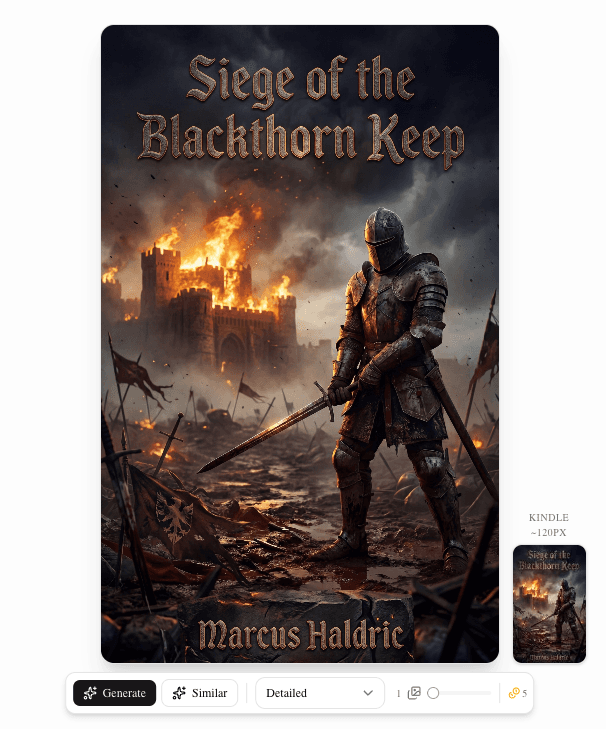
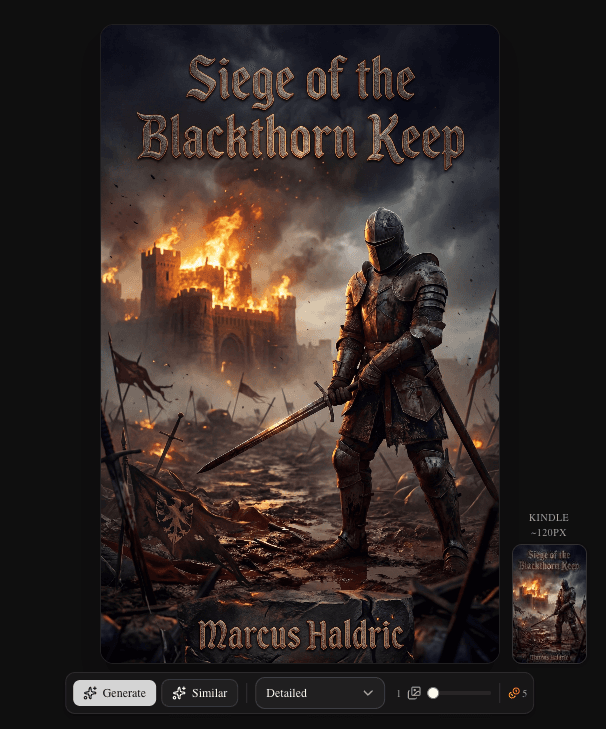
Sometimes you want text that feels like it's part of the artwork — not a layer sitting on top, but actually integrated into the visual world of the cover. Embossed metallic lettering for a fantasy title. A neon-glow author name for a cyberpunk thriller. Weathered, hand-painted text for a historical romance.
Standard text layers can't achieve this. They look like what they are: text placed on top of an image.
The bake technique solves this. It takes your current canvas — artwork and text layers together — flattens everything into a single image, and sends it back to the AI with an instruction to integrate the text into the artwork using genre-appropriate effects. The AI sees the text in its position, understands the genre context from your attributes, and returns an image where the text looks like it belongs.
Two styles control how the bake behaves:
Stylized — The AI applies genre-appropriate visual effects. Fantasy titles get an ornate etched-stone treatment. Sci-fi titles might get a holographic or neon effect. Romance titles might look painted or foil-pressed. The result has more personality but is more variable — each bake is a new generation, so the output isn't perfectly predictable.
Clean — The AI blends the text naturally into the image without heavy stylistic interpretation. More neutral and consistent. Good when you want integration without dramatic effects.
When to use bake: It works best on the title text — the largest, most prominent element where the visual payoff justifies the variability. Using it on the author name is possible but riskier; smaller text is harder for the AI to render cleanly, and author name legibility is non-negotiable.
A practical workflow: bake the title, keep the author name as a standard text layer. Get the dramatic integrated effect where it matters most, with reliable legibility where you can't afford variation.
BookClad Walkthrough
Here's the full process from cover art to finished typography in BookClad's canvas editor.
1. Open the canvas editor. Your generated cover fills the canvas. The Layers section in the right sidebar shows the current layer stack — at this point, just the image layer.
2. Add a text layer. Click the text tool or the "Add Text" button in the Layers panel. A new text layer appears on the canvas with placeholder text.
3. Type your title. Click the layer to edit it. Type your title text. Adjust the size using the properties panel on the right — make it large enough to read clearly at thumbnail scale.
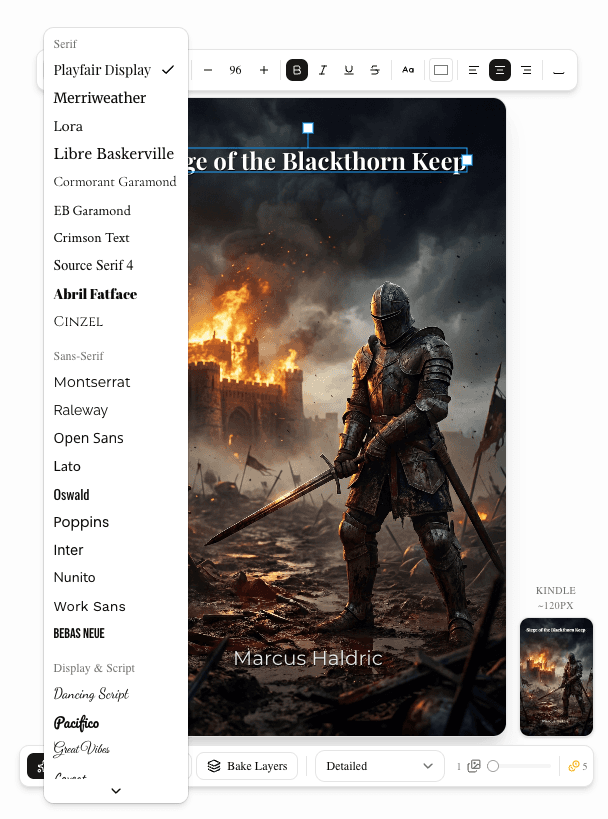
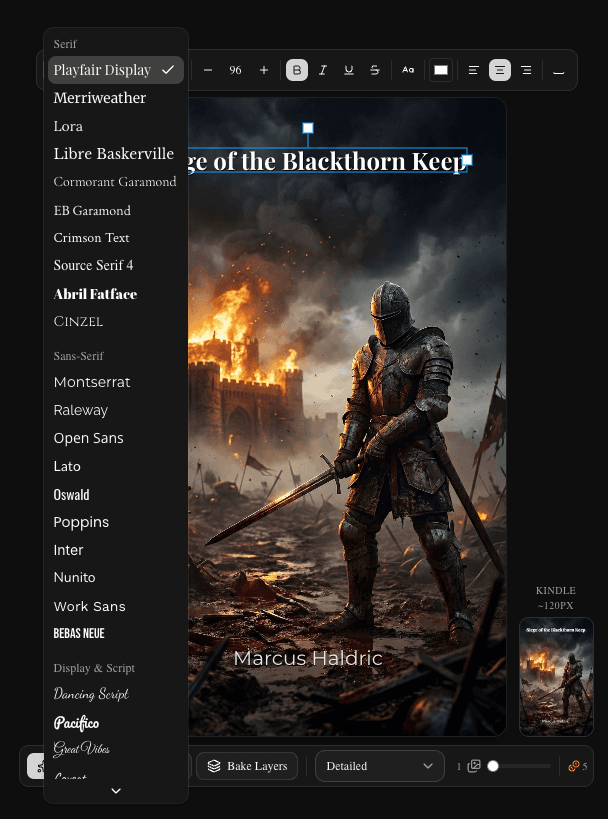
4. Choose a font. The font picker organizes fonts by category: serif, sans-serif, display, and monospace. Pick based on your genre — use the genre guide above if you're unsure. If you have a specific font you've already been using in your branding, upload it as a custom font from Settings and it'll appear alongside the built-ins.
5. Set the color. For most covers, white or black text (with appropriate contrast treatment) is the safe choice. For genre-specific treatments — gold for fantasy, red accent for thriller — adjust the color here. The properties panel also gives you opacity control for more subtle treatments.
6. Position the title. Drag it to the top third of the canvas. Check breathing room from the edges. Zoom out and look at the thumbnail-scale preview. If you can't read it clearly at arm's length from your monitor, it's either too small or there's a contrast problem to fix.
7. Add the author name. Add a second text layer. Smaller than the title. Place it in the lower third. Same font family (or a complementary pair if you're confident in the combination).
8. Optional: bake for integrated title effects. If you want the title text to feel like part of the artwork rather than a layer on top, select Stylized or Clean mode in the toolbar, then click "Bake Layers." The editor flattens the canvas and sends it to the AI. The returned image has your title visually integrated into the cover art. The author name layer remains separate — you can keep it as a text layer or bake it too if you're confident in the output.
9. Export. When you're happy with the result, export from the right sidebar. BookClad composites all layers and exports a KDP-ready JPEG at 1600 × 2560 pixels — the exact dimensions Amazon requires, at 300 DPI. Ready to upload directly to KDP.
A Few Things to Check Before Exporting
Thumbnail test. Resize or zoom out your browser until the cover is roughly 150-200px wide. Read the title. If you're hesitating, the thumbnail is failing.
Contrast check. Hold the cover at arm's length. Can you read both the title and the author name without focusing? If anything requires effort to read, fix the contrast before exporting.
Font count. Count the number of typefaces on the cover. If it's more than two, remove one.
Letter spacing on the title. All-caps title text almost always benefits from a small increase in letter-spacing. Tight tracking at display sizes looks rushed. Add a little air.
None of these checks take more than a minute, and they catch most of the problems that would be obvious after the fact.
Typography is the element of your cover you have the most control over. The AI handles the artwork — the genre mood, the illustration style, the color palette. But the title, the font, the placement, the contrast — those decisions are yours, and they're the ones readers often notice most clearly.
Get the artwork genre-right. Then get the text readable, appropriately styled, and well-placed. That combination — reliable AI art plus deliberate human typography — is what produces covers that look like they were made by someone who knew what they were doing.
Because they were.