Creating Your First Cover
Welcome to BookClad. This guide walks you through every step — from signing up to having a KDP-ready cover image in hand. The whole process takes under five minutes.
Step 1: Sign Up
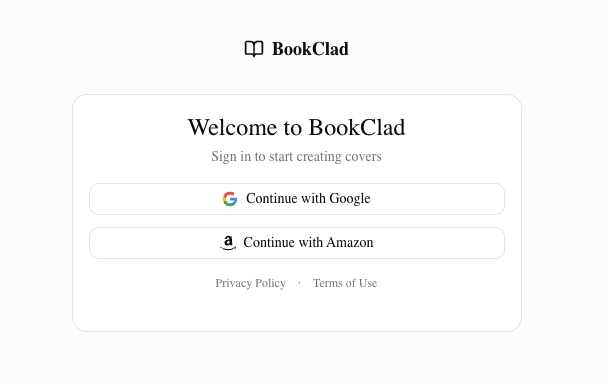
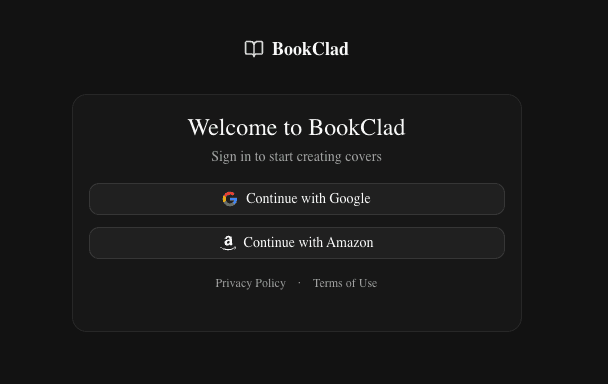
Visit bookclad.com and click Start Free. Sign in with Google, Apple, or Amazon — no password required.
When your account is created, you automatically receive 15 free credits. That's enough for five Quick-tier images or three Detailed-tier images to get started. See Understanding Credits for a full breakdown of how credits work.
Step 2: Create a Project
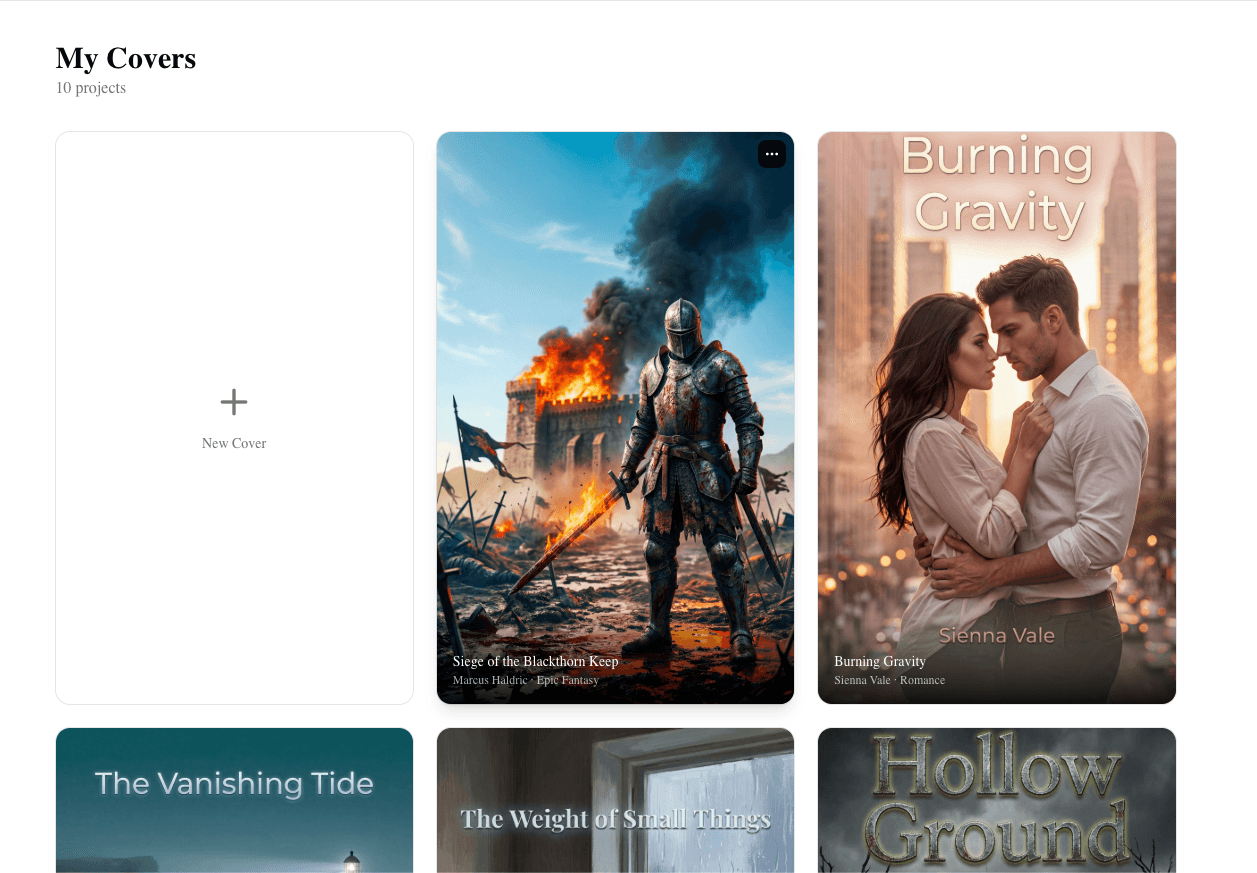
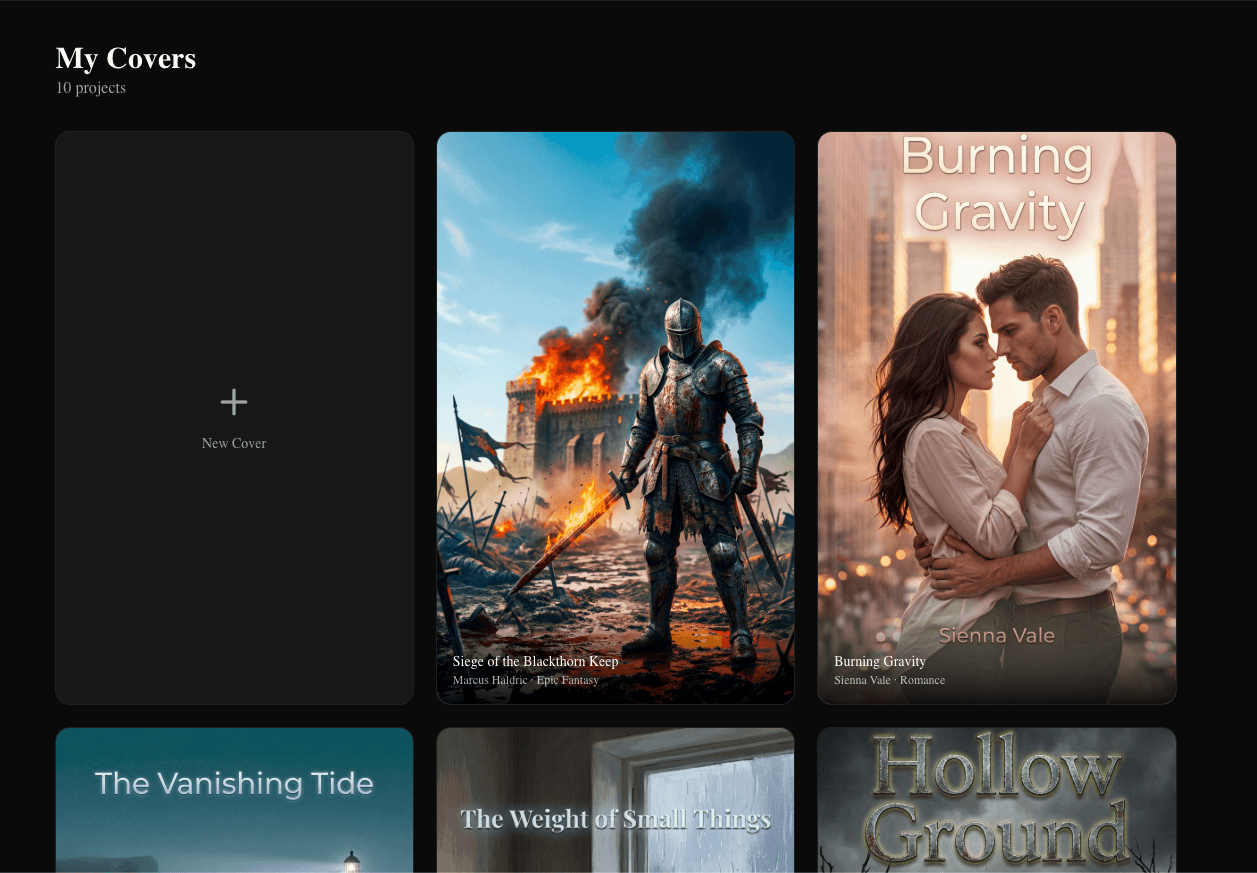
From the dashboard, click Create a Cover.
Give your project a name — your book title works well. The name is just for your reference inside BookClad; it doesn't appear on the cover itself.
Step 3: Describe Your Book
Write a brief description of your book in the Brief field. This is the single most important input — be specific.
Works well:
A dark psychological thriller about a detective investigating a series of disappearances in a remote fishing village on the Norwegian coast. Atmospheric, isolated, winter setting.
Too vague:
thriller book
The more concrete your description, the closer the first generation will be to what you're imagining. You can always refine later.
Step 4: Set Your Attributes
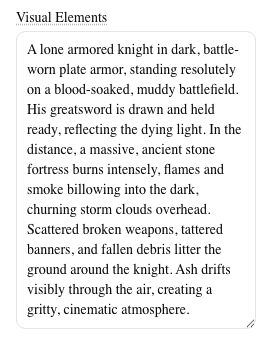
Attributes — genre, mood, art style, visual elements, and color palette — give the AI precise creative direction beyond what text alone can convey.
- Genre: What section of a bookstore does this belong in?
- Mood: The emotional tone the cover should evoke.
- Art Style: Photorealistic, illustrated, painterly, minimalist, etc.
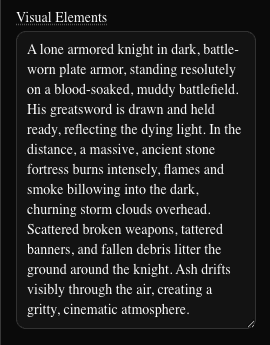
- Visual Elements: Objects, settings, or imagery to include.
- Color Palette: Overall color direction or a specific palette.
Not sure what to pick? Use AI Fill
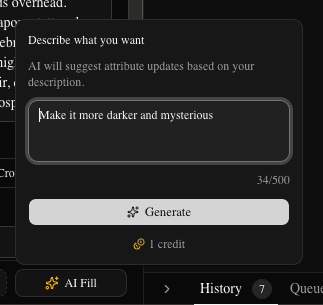
Click AI Fill in the left sidebar. Describe what you want in plain language — "dark and moody, feels like Scandinavian noir, cold blues and grays" — and it suggests the right attribute combination for you. AI Fill costs 1 credit.
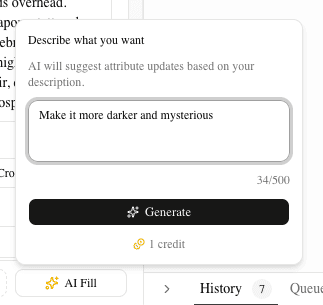
Review the suggested changes in the dialog that appears — check or uncheck individual suggestions, then click Apply.
Step 5: Choose Your Model Tier
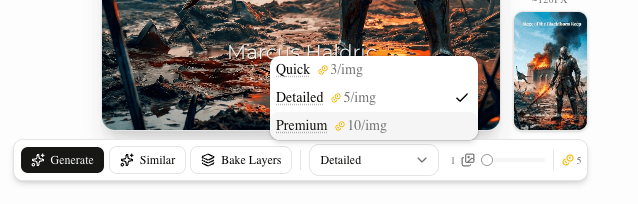
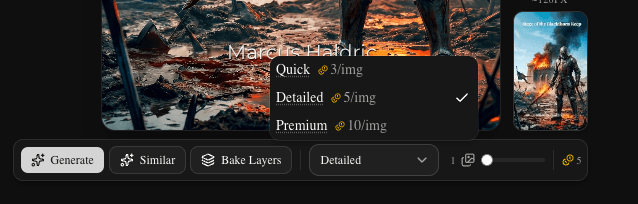
Select how much generation quality you need:
| Tier | Credits/image | Quality | Export-ready |
|---|---|---|---|
| Quick | 3 | Prototyping | No |
| Detailed | 5 | High, KDP-compliant | Yes |
| Premium | 10 | Highest quality | Yes |
Quick is great for exploring concepts fast. The resolution is lower and not suitable for final upload to KDP. Available on all plans including Free.
Detailed is the right choice for most covers. Outputs at full KDP resolution (1600x2560, 300 DPI), ready to upload. Requires a Starter plan or higher.
Premium uses a more capable model for the highest visual fidelity. Also KDP-ready. Requires Starter or higher.
If you're on the Free tier, start with Quick to explore ideas, then upgrade when you're ready to produce your final cover.
Step 6: Generate
Choose how many images to generate (1–8), then click Generate.
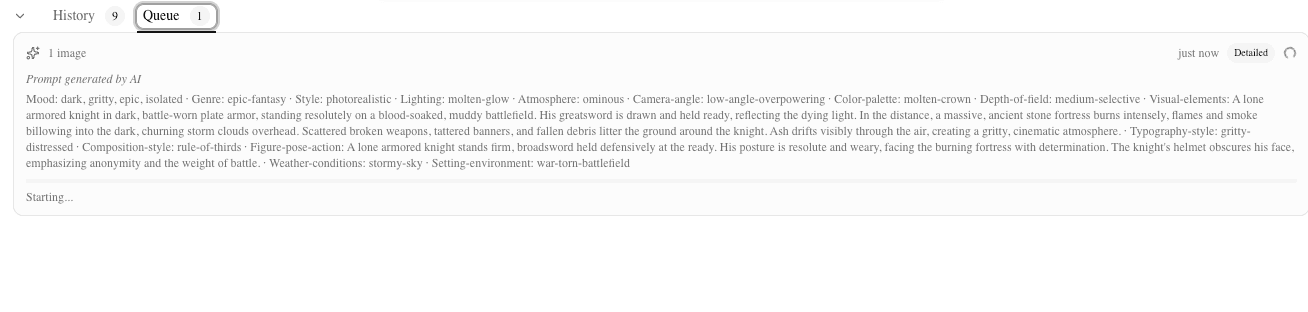
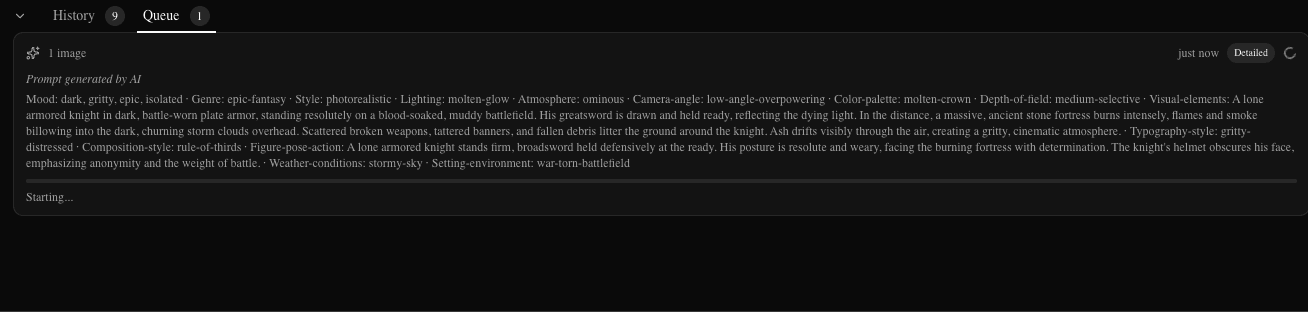
The Queue tab at the bottom of the editor shows live progress. Generation typically takes 15–45 seconds depending on the tier and how many images you requested.
Step 7: Browse Your Results
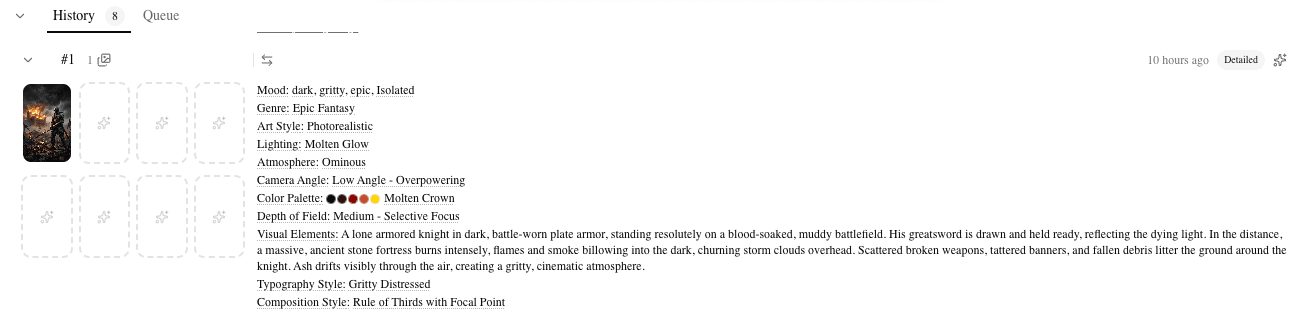
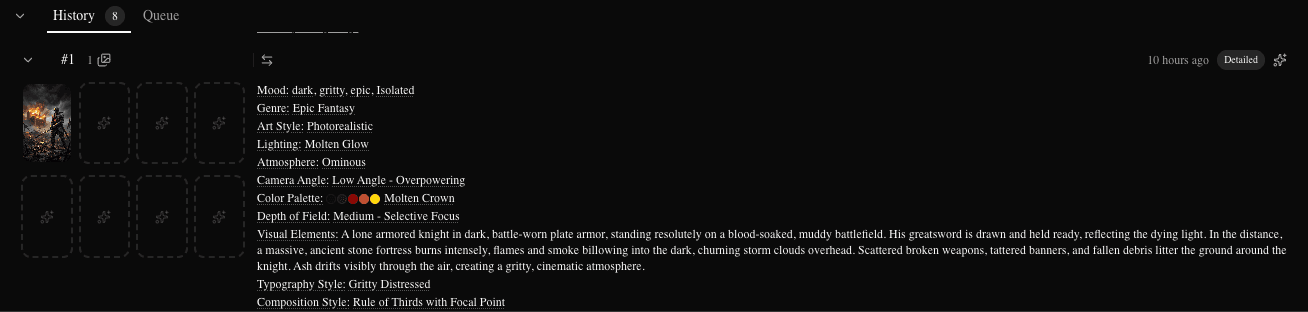
When generation completes, the History tab shows your generated images grouped by generation. Click any image to load it on the canvas.
If none of the results are quite right, you can:
- Adjust your brief or attributes and generate again
- Click Generate More on an existing generation to add more variations
Step 8: Add Text
Your cover is ready to customize. In the right sidebar under Layers, click Add Text to create a text layer.
Add your title and author name. The editor lets you:
- Choose from a curated font library
- Adjust size, color, letter spacing, and line height
- Drag to position anywhere on the canvas
- Layer multiple text elements
For a deeper look at all the canvas tools, see the Cover Editor guide.
Step 9: Export
When your cover looks right, click Export JPEG or Export PNG in the right sidebar.
BookClad exports at 1600x2560 pixels, 300 DPI — exactly what Amazon KDP requires. Download the file and upload it directly to your KDP bookshelf.
Note: Only Detailed and Premium generations are export-ready. Quick-tier images are lower resolution and the Export button is disabled for them.
That's it
You've gone from sign-up to a KDP-ready cover image. If you have credits left, try generating a few more variations — it's worth exploring before committing to a final design.
Next steps:
- Understanding Credits — how credits are calculated and how to get more
- The Cover Editor — full guide to canvas tools, layers, fonts, and baking text