The Cover Editor
The cover editor is where you refine generated images, add text, and prepare your final cover for export. This reference covers every section of the editor so you can find what you need quickly.
For a walkthrough of the full creation flow, see Creating Your First Cover.
Editor layout
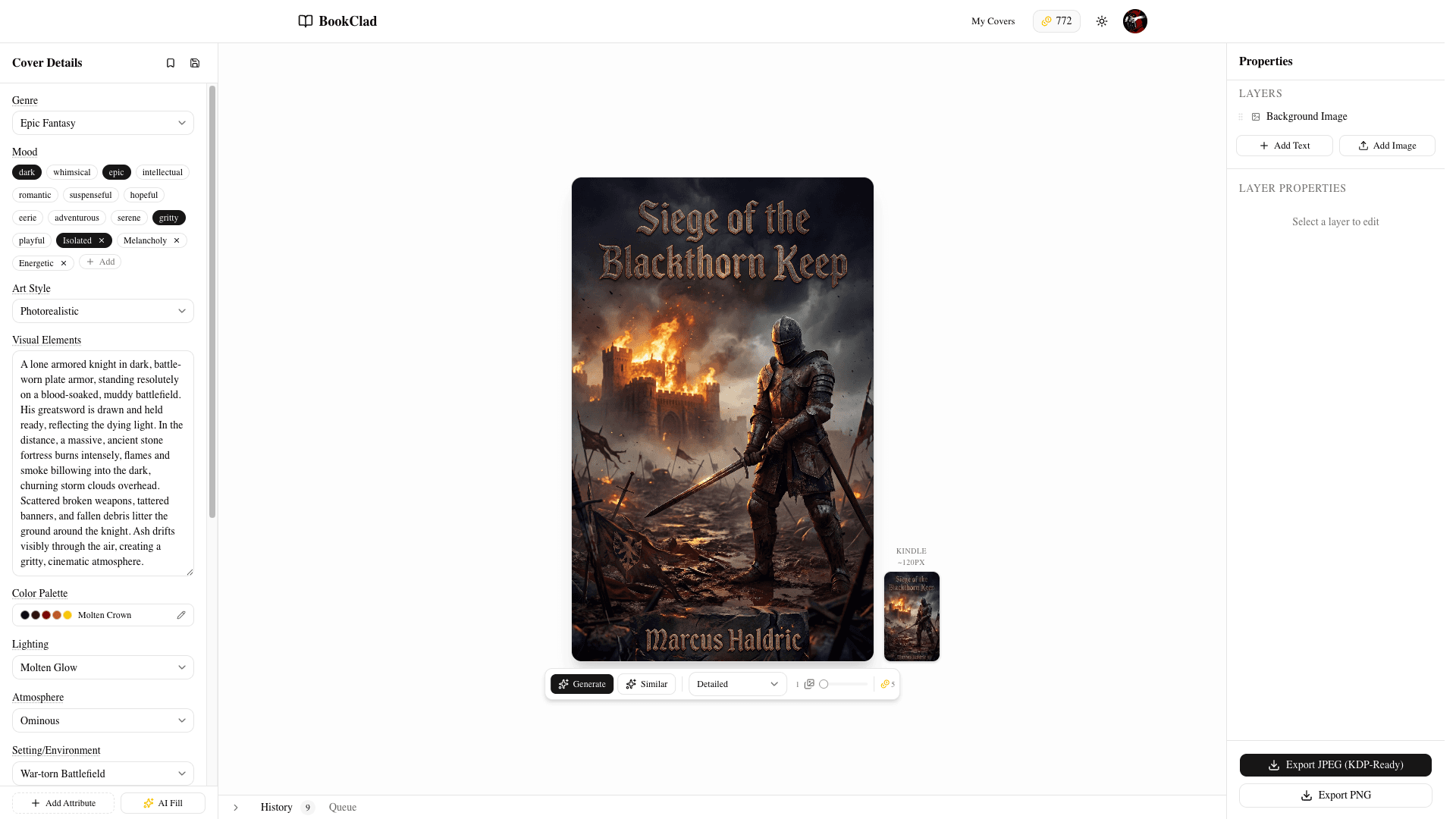
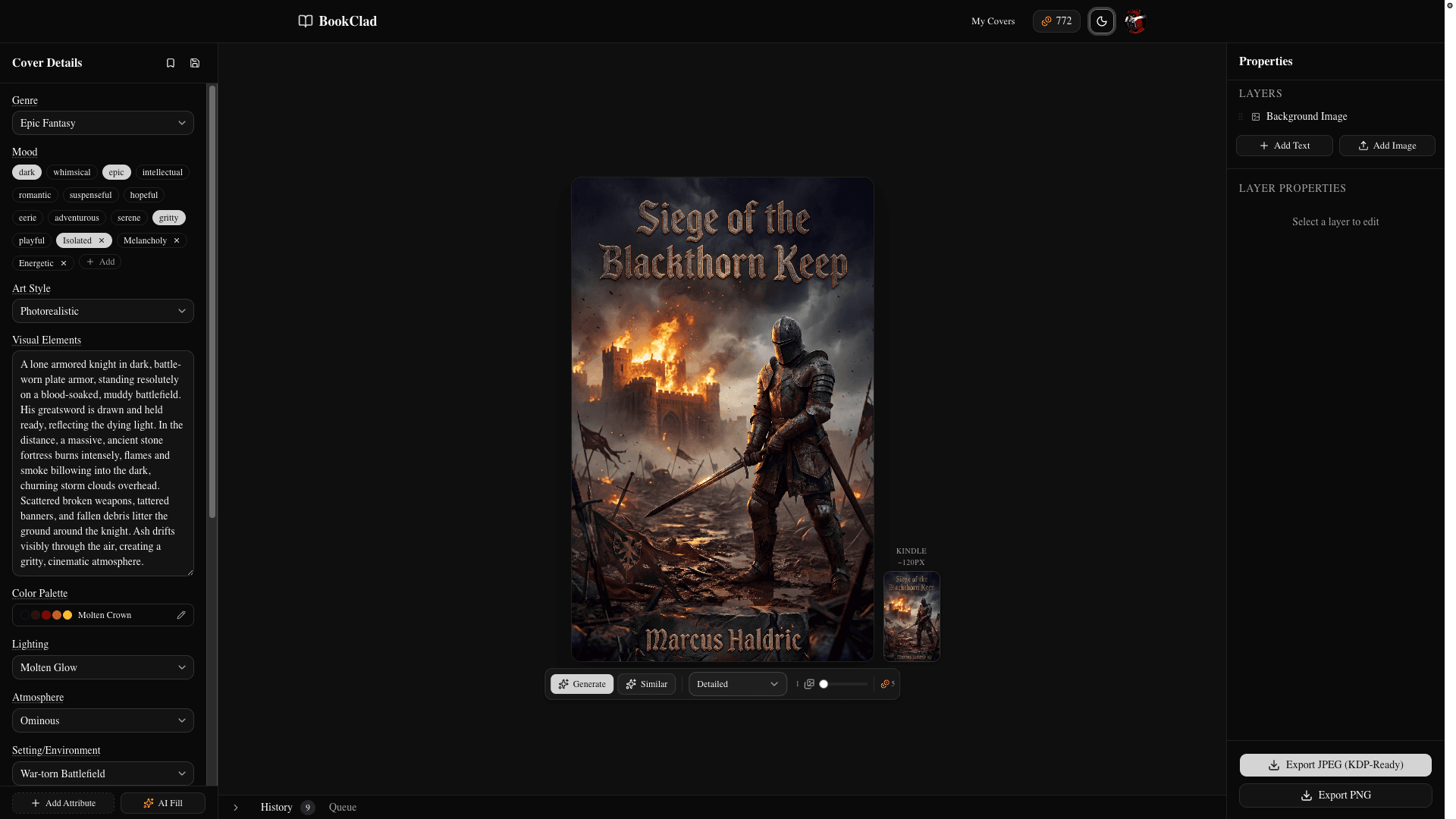
The editor is organized into three panels.
Left sidebar — Attribute inputs (genre, mood, art style, visual elements, color palette) and your book brief. Adjust these and regenerate at any time to steer the AI in a new direction.
Center panel — The canvas. Your cover is displayed here at a preview scale (400×640). All text layers are visible and editable directly on the canvas. Below the canvas is a bottom panel with two tabs:
- History — All past generations for this project, grouped by generation run.
- Queue — Active and retrying generations with real-time progress.
Right sidebar — Layers list, text properties, and the export controls.
Working with generated images
Click any image thumbnail in the History tab to load it onto the canvas. You can switch between images freely — text layers are preserved per image, so your title and author placement on one image won't affect another.
When a generation is still running, progress is shown in the Queue tab. Completed images appear in History automatically.
Adding text
In the right sidebar under Layers, click Add Text. A new text layer appears in the center of the canvas.
From there:
- Click the text on canvas to edit the content directly.
- Drag to reposition anywhere on the canvas.
- Drag the handles at the corners to resize the text box.
Most covers need at minimum a title layer and an author name layer. Add as many text layers as your design calls for.
Text properties
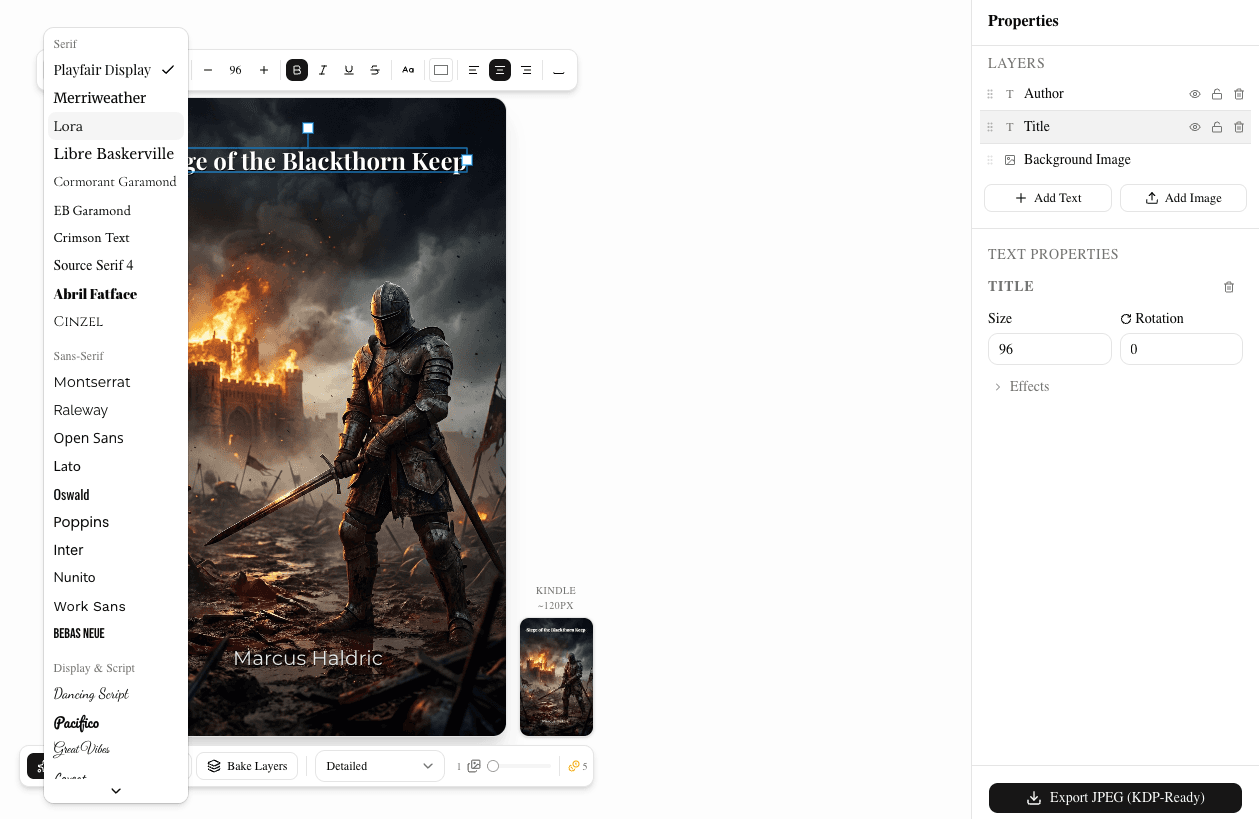
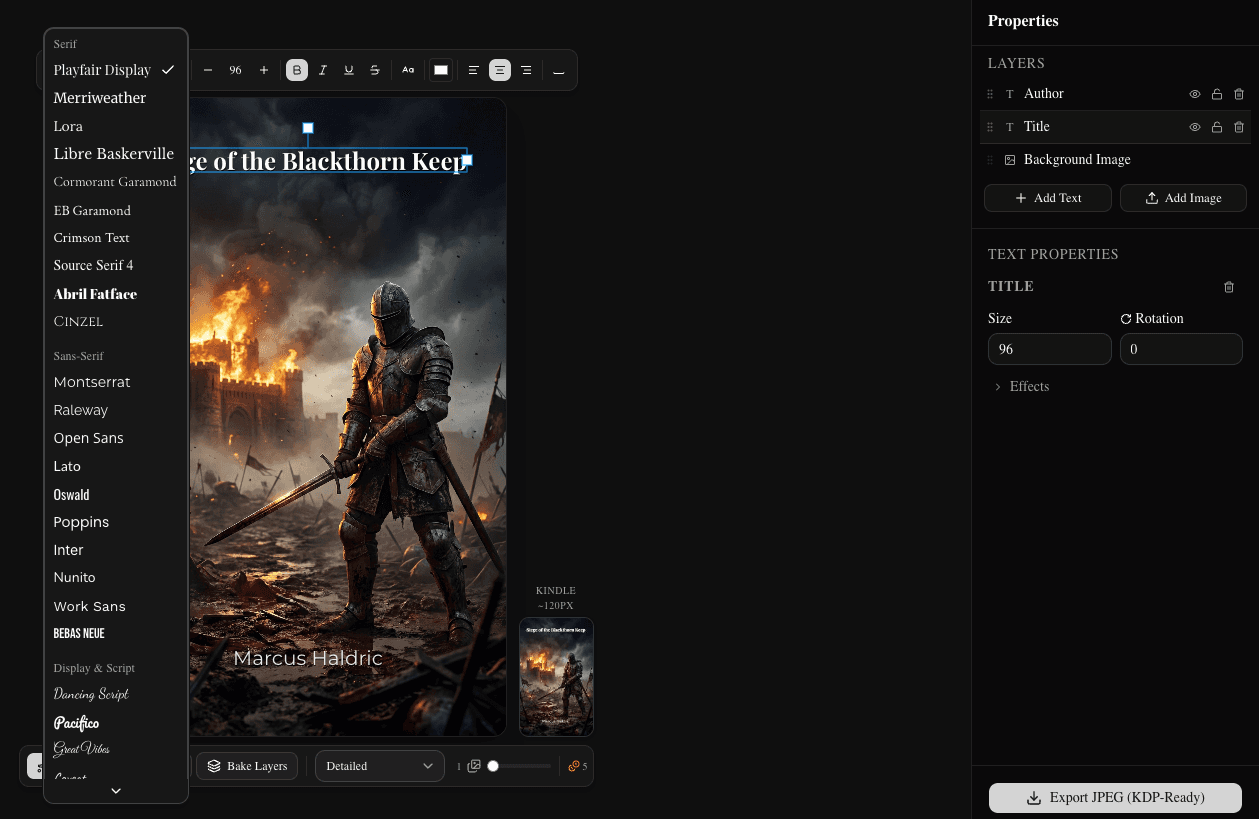
Select a text layer — either by clicking it on the canvas or clicking its row in the Layers panel — to reveal its properties in the right sidebar.
| Property | What it does |
|---|---|
| Font family | Choose from the built-in library or any custom fonts you've uploaded |
| Font size | Point size; also adjustable by resizing the text box on canvas |
| Color | Text color with a color picker and hex input |
| Alignment | Left, center, or right alignment within the text box |
| Letter spacing | Tighten or loosen the space between characters |
| Position (X/Y) | Precise coordinate placement in canvas pixels |
All property changes reflect on the canvas in real time.
Fonts
Built-in library — Fonts are organized into four categories: Serif, Sans-Serif, Display, and Monospace. Open the font picker in text properties to browse and preview them.
Custom fonts — Upload your own TTF or OTF font files via the font picker. Uploaded fonts are saved to your account and available across all your projects. Custom fonts load locally in the browser and do not affect the final export dimensions.
For typography best practices specific to book cover design, see How to Add Text to an AI Book Cover.
Layers panel
The right sidebar shows a stacked list of all layers on the current canvas. Layers are ordered from top to bottom — layers higher in the list appear in front.
- Drag a layer row to reorder it.
- Click the eye icon to toggle a layer's visibility without deleting it.
- Click a row to select that layer and load its properties.
The base cover image is always at the bottom of the stack and cannot be reordered.
Bake layers
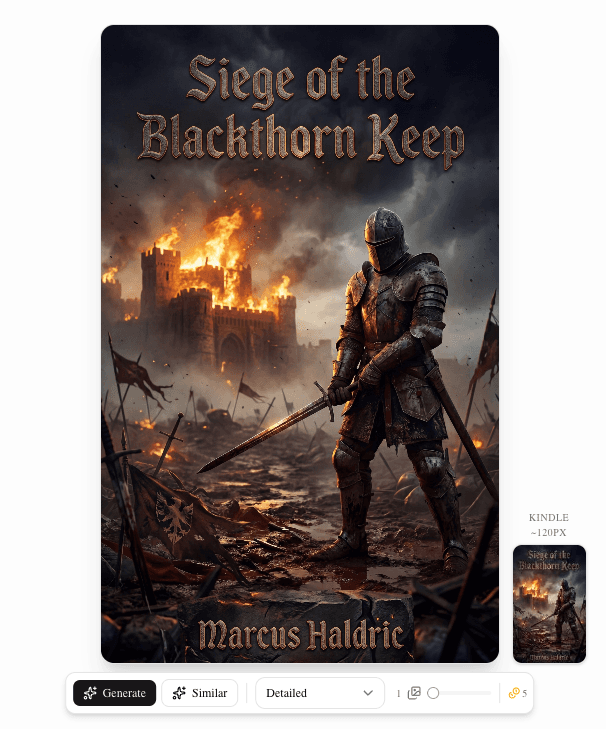
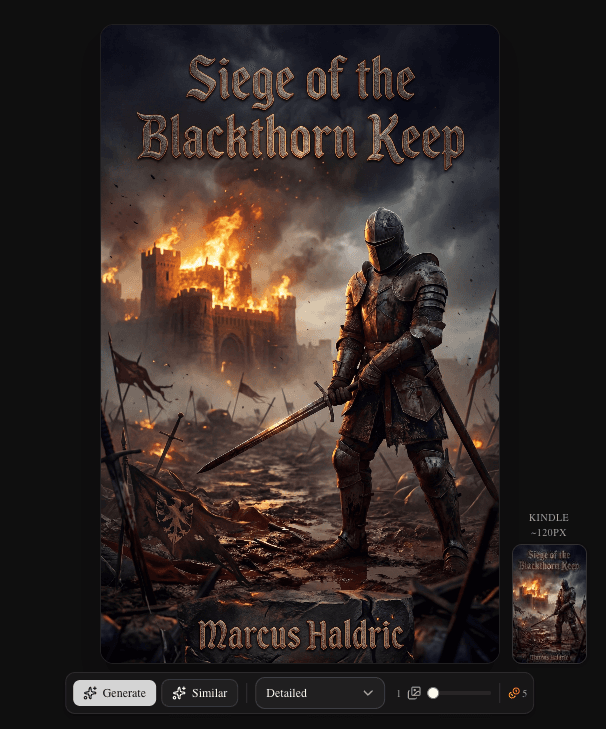
Baking integrates your text layers into the artwork using AI. Instead of text sitting on top of an image, the result looks like the text was part of the original illustration — with materials, lighting, and depth that match the scene.
How to bake:
- Add and position your text layers on the canvas.
- In the editor toolbar above the canvas, click Bake Layers.
- Choose a bake style (see below).
- Click Generate — a new generation starts using the flattened canvas as a reference.
Bake styles:
- Stylized — The AI applies genre-appropriate creative effects. Metal embossing on a fantasy cover, neon glow on a sci-fi cover, aged stone on a historical cover. Choose this when you want the text to feel integral to the scene.
- Clean — Simple, natural blending. Text sits within the image without heavy effects. Choose this when you want readability over flair.
Baking uses AI generation and costs credits based on your current model tier. See Understanding Credits.
After a successful bake, visible text layers are cleared from the canvas automatically — the text is now part of the image and doesn't need to be rendered twice.
Generation history
The History tab in the bottom panel shows all generations for this project, newest first. Each generation group displays:
- The images generated in that run.
- The attribute settings used — genre, mood, art style, etc.
- Amber highlights on any attributes that changed from the previous generation, so you can see what effect a change had.
Click Generate Similar on any generation to create new variations using the same attribute set. This is useful when a particular combination produced results you liked and you want more options in that style.
Extending a generation
Generate More adds additional images to an existing generation without starting a new one. The new images use the same attributes and brief as the original batch.
Use this when:
- You want more options but the same creative direction.
- You generated a small batch initially and want to see more before committing.
New images are appended to the existing generation group in History.
Export
When your cover is ready, click Export JPEG or Export PNG in the right sidebar.
BookClad exports at 1600×2560 pixels, 300 DPI — the exact dimensions Amazon KDP requires. All visible text layers are composited into the final image at full resolution.
Note: Export is only available for Detailed and Premium tier images. Quick-tier images are lower resolution and are intended for prototyping only — the Export button is disabled for them. Upgrade to a paid plan to access Detailed and Premium generation.
Download the exported file and upload it directly to your KDP bookshelf.
Next steps
- Creating Your First Cover — full walkthrough from sign-up to export
- Understanding Credits — generation costs, plans, and refunds